
Prove the asset is there, and keep the proof.
Campaigns scoped by branch, location and category. QR and barcode scanning or count sheets. Verified, missing, found-elsewhere and mismatch outcomes with photo and signature evidence, and a sign-off chain that ends in a signed statement for your auditor.
What you get
Campaigns
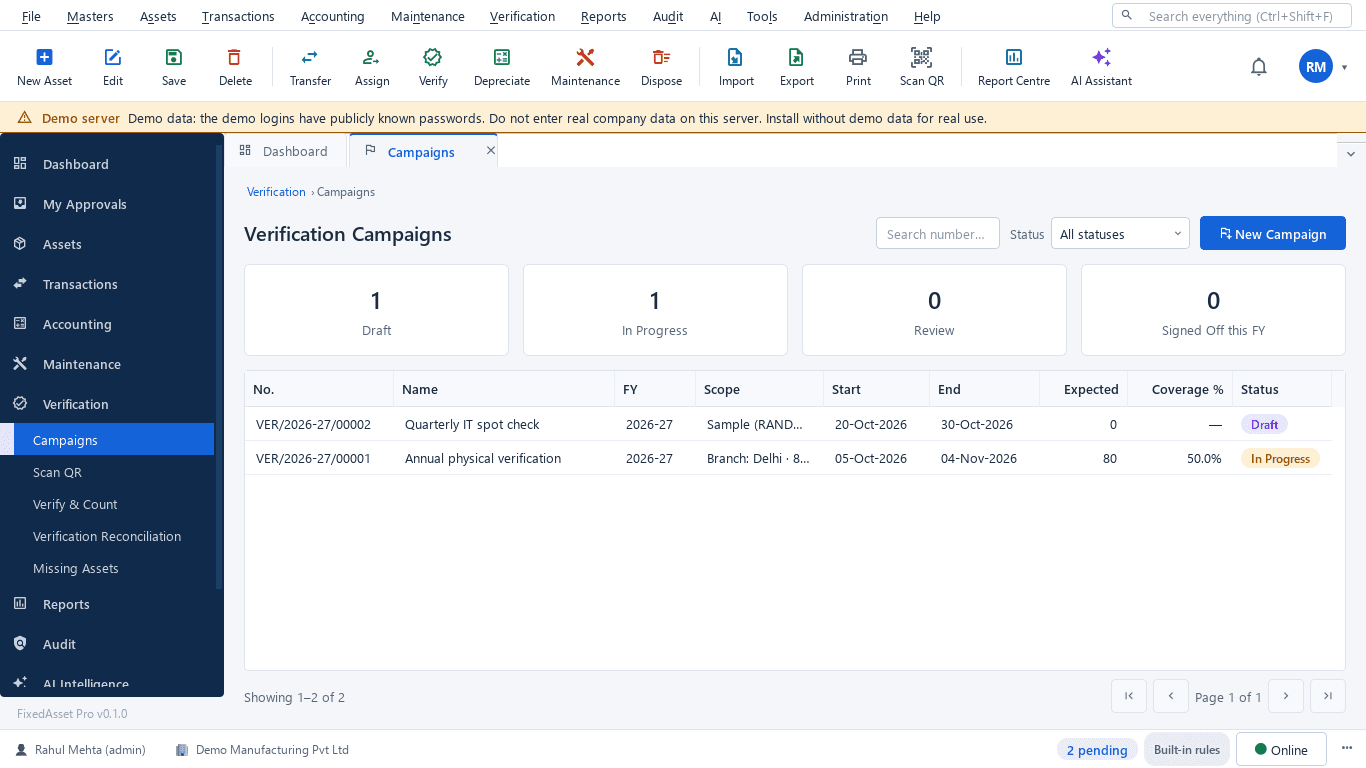
Scope by branch, location and category with a preview of what will be counted; full count or sample; teams per campaign; schedule, start, close counting, reopen or cancel. Add assets found during the count.
Scanning
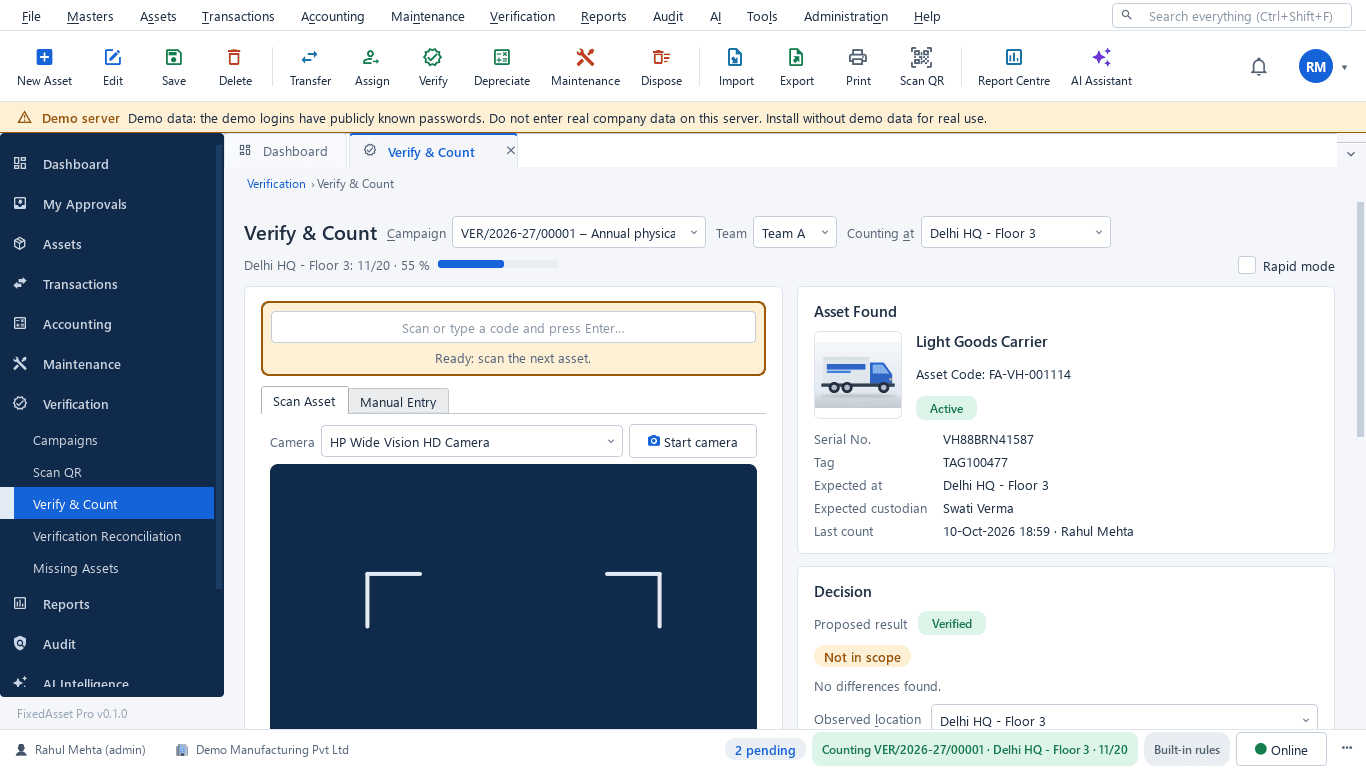
USB scanner, webcam or manual entry; batch scans from a handheld reader file. Blind count and rapid mode (one scan when nothing differs), green, amber and red signals with sounds, undo the last count.
Count sheets
Paper or Excel count sheets exported per campaign; the import validates every row, gives an error workbook and commits only what passes.
Outcomes decided by the server
Verified, Missing, Found Elsewhere, Custodian Mismatch, Damaged, Unidentified and Duplicate are classified by one server-side rule set, whatever device recorded the count.
Evidence
Photo, comment and signature rules per outcome; bulk photo upload for a campaign; location labels and custodian statements as PDF. Evidence stays attached to the result.
Reconciliation queues
Review items one by one or in bulk: create a transfer, mark missing, recover, propose a write-off, match an unidentified tag. Clone a re-verify campaign from the discrepancies.
Custodian confirmation
Employees answer With me, Not with me or Damaged for every asset assigned to them and sign. Kept separate from physical sightings, so it never inflates verification coverage.
Sign-off
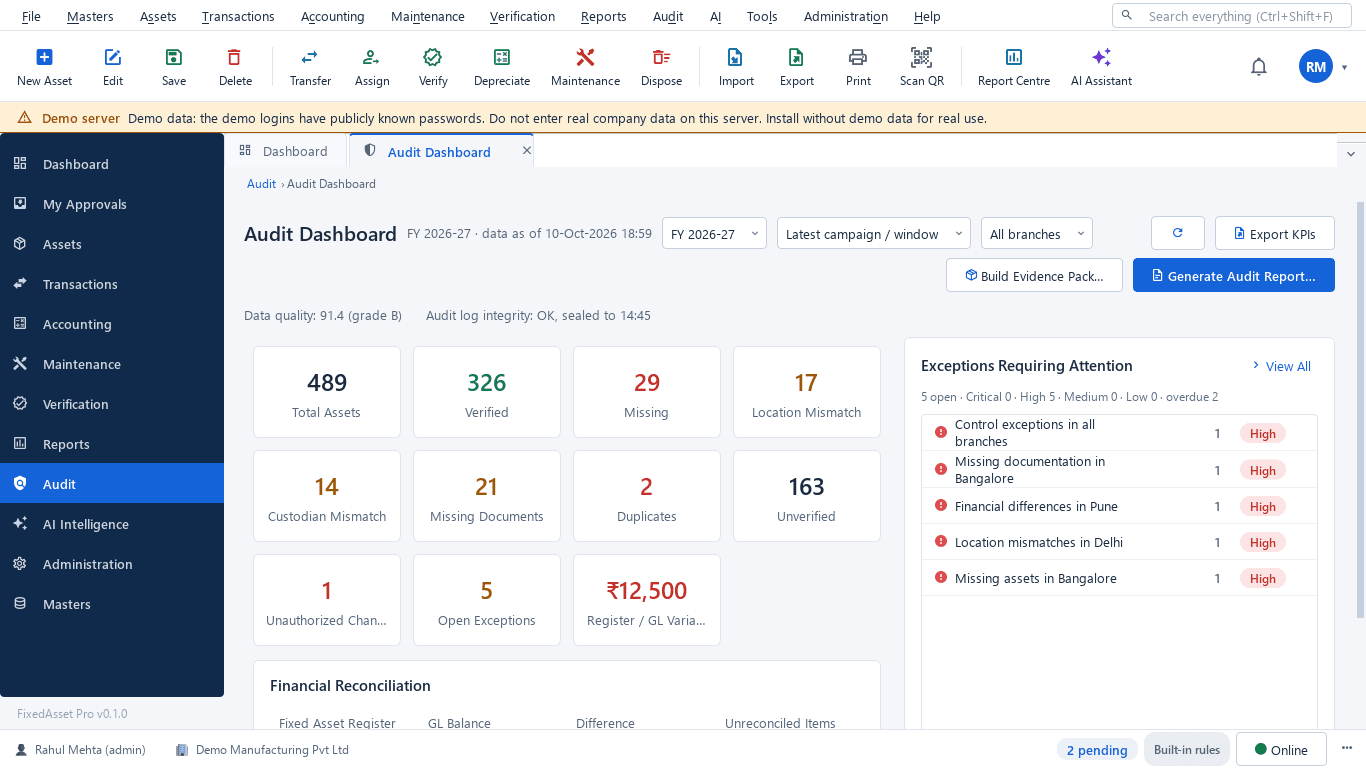
Mark reconciled, submit for sign-off, then Asset Manager, Finance and Management sign in turn. The signed statement feeds the audit report pack.
Coverage counts sightings only
Verification coverage is calculated from physical sightings. Custodian confirmations are recorded separately, so an employee's answer never stands in for a count.
How it works
Five stages, from the plan to a signed statement.
Plan
Scope by branch, location and category; full count or sample; teams and schedule.
Count
Scan the room label, then each tag; or import the count sheet.
Reconcile
Missing, found elsewhere, custodian mismatches, damaged and unidentified in their queues.
Resolve
Transfer, recover, write-off proposal or an audit exception for each item.
Sign off
Asset Manager, Finance, Management; the statement goes into the audit pack.
In the product
Real screens of the desktop edition, captured on a demo server. The web edition runs the same backend rules in the browser.
Web and desktop
Which edition has it today. One backend, the same depreciation engine, approval chains and audit trail on every surface.
Web app
AvailableCampaigns, counting with a USB scanner or count sheets, reconciliation queues, evidence, custodian confirmation and sign-off in the browser.
Desktop app
AvailableUSB scanner, webcam or manual entry, printed count sheets and labels, typed, drawn or paper sign-off.
Mobile app
AvailablePhone-camera scanning and offline counting that syncs later, for web edition users.
Works with
Where this feature connects to the rest of the platform, and who uses it most.
Related features
By role
Frequently asked questions
Do we need a mobile app to count?
No. The desktop edition counts with a USB scanner, a webcam or count sheets; the web edition with a USB scanner or count sheets. Web edition users can also count with the mobile app, using the phone camera and offline counting that syncs later.
What happens to an asset that is not found?
It goes to the Missing queue with its last-seen date and the campaigns it has missed. From there it can be recovered, transferred if it was found elsewhere, proposed for write-off, or raised as an audit exception.
Can we verify a sample instead of everything?
Yes. A campaign can be a full count or a sample within its scope, and a re-verify campaign can be cloned from the discrepancies of the last one.
What is the CARO 3(i)(b) statement?
Under CARO 2020, the auditor reports whether property, plant and equipment were physically verified at reasonable intervals and whether discrepancies were dealt with. The campaign's signed statement and the audit report pack give the auditor that evidence; FixedAsset Pro does not itself certify compliance.
More about Physical Verification
Learn more in our guides
Moving assets between locations, branches and companies without losing the trail
A transfer looks like a change of location in the register. Depending on where the asset goes, it can also be a GST supply, a disposal by one company and an acquisition by another, and a gap in your verification. A practical guide.
Tagging the awkward ones: a field guide for assets that resist a label
Laptops and chairs are easy. Hot machines, sterilised equipment, vehicles, moulds at a vendor's site and land are not. A practical, asset-by-asset guide to tagging and verifying what does not take a sticker well.
What your auditor will ask for on fixed assets, and how to have it ready
A prepared-by-client list for property, plant and equipment, organised by the questions the auditor is trying to answer: does it exist, is it complete, do you own it, and is it valued and presented correctly.
See it on your own register
Start a free trial of the web edition, or book a demo and we will walk through it with your data. No card is needed to begin.