
Implementation guide
Six steps from a spreadsheet to a live register: prepare the data, set up the company and books, test the import, print labels, pilot a count and assign roles. Then work through the go-live checklist.
Implementation steps
Prepare your data
Most of the effort in any implementation is the master file. Get it right once and everything after it is easier.
- Start from the last audited fixed asset schedule, not a working copy: the closing gross block and accumulated depreciation by class are your control totals.
- Put the register into the import template layout. Every asset needs a name, a category, a location, a purchase date and a cost; the put-to-use date drives depreciation.
- Collect the Income-tax block WDV at the cut-over date from Form 3CD clause 18 of the last tax audit report.
- List your masters: branches, locations, departments, cost centres, categories, vendors and custodians. The importer can create missing masters, but a clean list avoids duplicates.
Download the register templateGuide: the columns you needGuide: moving from Excel
Set up company, books and financial year
Sign-up creates your real company and administrator; there is no demo data in your workspace.
- Create the company and its branches, and set the financial year (April to March in India).
- The Companies Act (Schedule II) and Income-tax (s.32 block) books are built in. Add an Ind AS / IFRS, management or custom book if you need one, and choose the corporate book that posts to the ledger.
- Set the depreciation policy per category: method, useful life and residual value. Schedule II lives ship as reference data.
- If journals will go to your accounting system, map the ledger accounts first.
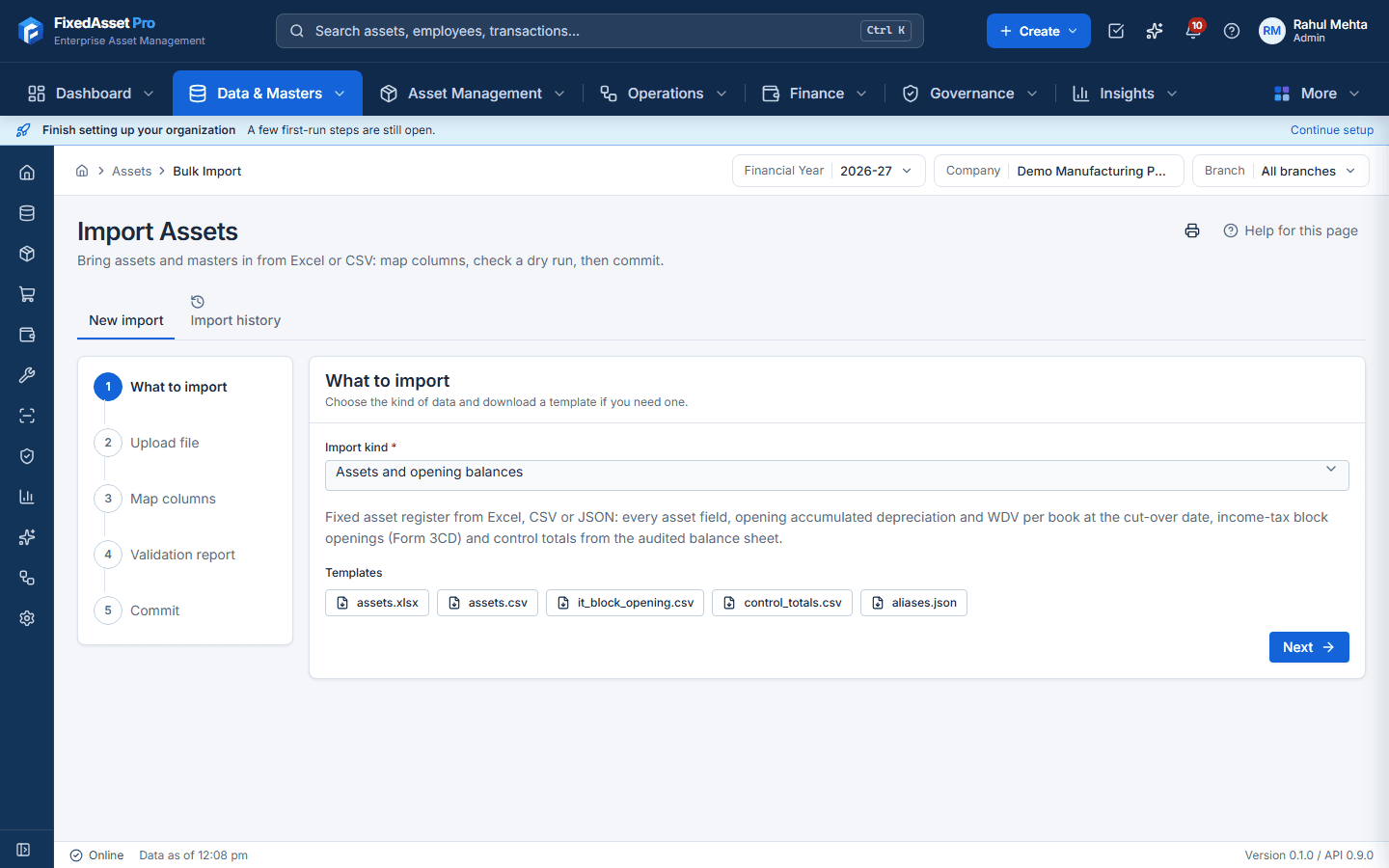
Run a test import
Import a small sample first, then the whole register.
- Upload the file and map any columns that do not match automatically.
- Read the dry-run report: every error and warning is listed before anything is saved. The import is all-or-nothing, so fix the rows and upload again.
- Check the preview against your control totals; opening balances must tie to the audited figures.
- After the import, open a few assets and use Explain on their depreciation to confirm the policy is what you expect.
Fixed Asset ManagementCross-check with the Schedule II calculator
Print QR labels
Labels connect the register to the floor, so the first count can be scanned rather than ticked.
- Print QR, barcode, Data Matrix or EAN-13 labels from the register on your own label sheets. A QR code carries an identifier only, never the asset's values.
- Choose a durable label material for the environment: plant floors and outdoor assets need tougher labels than office furniture.
- Tag location by location, and record any asset you cannot find or that has no register entry.
Pilot a verification count
Run one small campaign before the full count.
- Create a campaign scoped to one location or category and assign a team.
- Count with a USB scanner, a webcam or count sheets on the desktop edition; on the web edition, a USB scanner, count sheets or the mobile app with offline counting.
- Work the missing, found-elsewhere and mismatch queues to see how discrepancies are resolved and approved.
- Review the signed statement the campaign produces, and agree with your auditor what evidence they want to see.
Assign roles
Give each person only the access they need.
- Administrators manage users, masters and settings.
- Finance users run depreciation, close periods and post journals.
- Asset managers and custodians record transfers, maintenance and counts through approvals.
- Auditors get read-only roles that can see assets, evidence and reports and export them.
Go-live checklist
- Register imported; gross block and accumulated depreciation tie to the audited schedule by class.
- Income-tax block WDVs tie to Form 3CD clause 18 at the cut-over date.
- Depreciation policy confirmed per category and spot-checked with Explain.
- Ledger accounts mapped, if journals will be exported or sent to your accounting system.
- Users created with the right roles; auditor access agreed.
- Labels printed and applied for the pilot locations; pilot count completed and reviewed.
- Periods before the cut-over date closed, so nobody can post into them by mistake.
- Backup in place (desktop edition: through Server Manager) and the team knows where to get help.
Desktop (LAN) installations
Start with your own company
Set up your real company, books and financial year, and import your register in the free trial.