
Every stage of an asset's life, recorded as its own transaction.
Request, procure, receive, capitalise, tag, assign, maintain, verify, transfer and dispose. Each stage is a document with its approvals, so the register can always explain how it got here.
What you get
Acquisition
Purchase documents with vendor, invoice, freight and taxes; GST fields on every acquisition line so input credit is handled from the start.
Capitalisation
Capitalise from a goods receipt, a CWIP project or a draft. The form is prefilled from the source document and goes through approval before the asset starts depreciating.
Assignment and handover
Custodian handover with a printable acknowledgement; return to store; department and employee views of what is assigned.
Transfers
Move between employee, department, location, branch, company or cost centre, including split transfers. Every move is approved and keeps the asset's history.
Disposal
Full or partial disposal by quantity or value: sale, scrap, donation, write-off or theft. Technical, finance and management review, gain or loss and the disposal journal; a disposal made in error can be reversed.
Employee self-service
Employees confirm the assets assigned to them, request a transfer and report a loss with evidence; department heads see their department's assets and requests.
Approval chains you design
Workflow Designer: steps by role or user, any or all approvers, time limits, conditions by transaction type, amount and branch; test a chain before activating it. My Approvals tracks what is overdue.
History that is never overwritten
Every lifecycle event is kept as its own record with who, when and why. The asset's timeline is the audit trail of its life.
How it works
The ten stages of the lifecycle. Each one leads to the feature that handles it.
Request
A CapEx request checks the budget before anything is bought.
Procurement
Quotation, purchase order and vendor.
Receipt
Goods receipt and inspection against the order.
Capitalisation
From the receipt, CWIP or a draft; depreciation starts from put-to-use.
Tagging
QR, barcode or RFID label on the asset.
Assignment
Custodian handover with acknowledgement.
Maintenance
Work orders, preventive schedules, contracts and cover.
Verification
Campaign counts prove the asset is there.
Transfer
Approved moves between people, places and companies.
Disposal
Sale, scrap, donation or write-off with gain or loss.
In the product
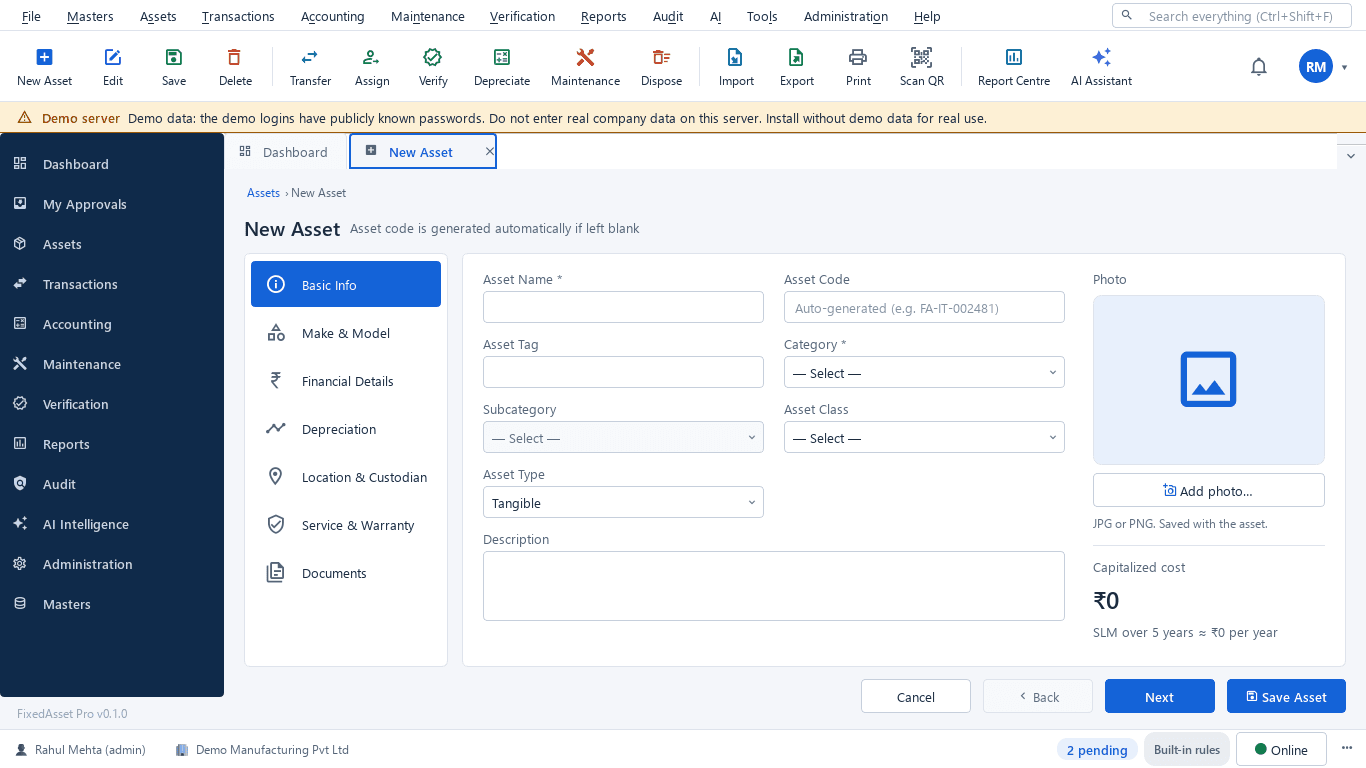
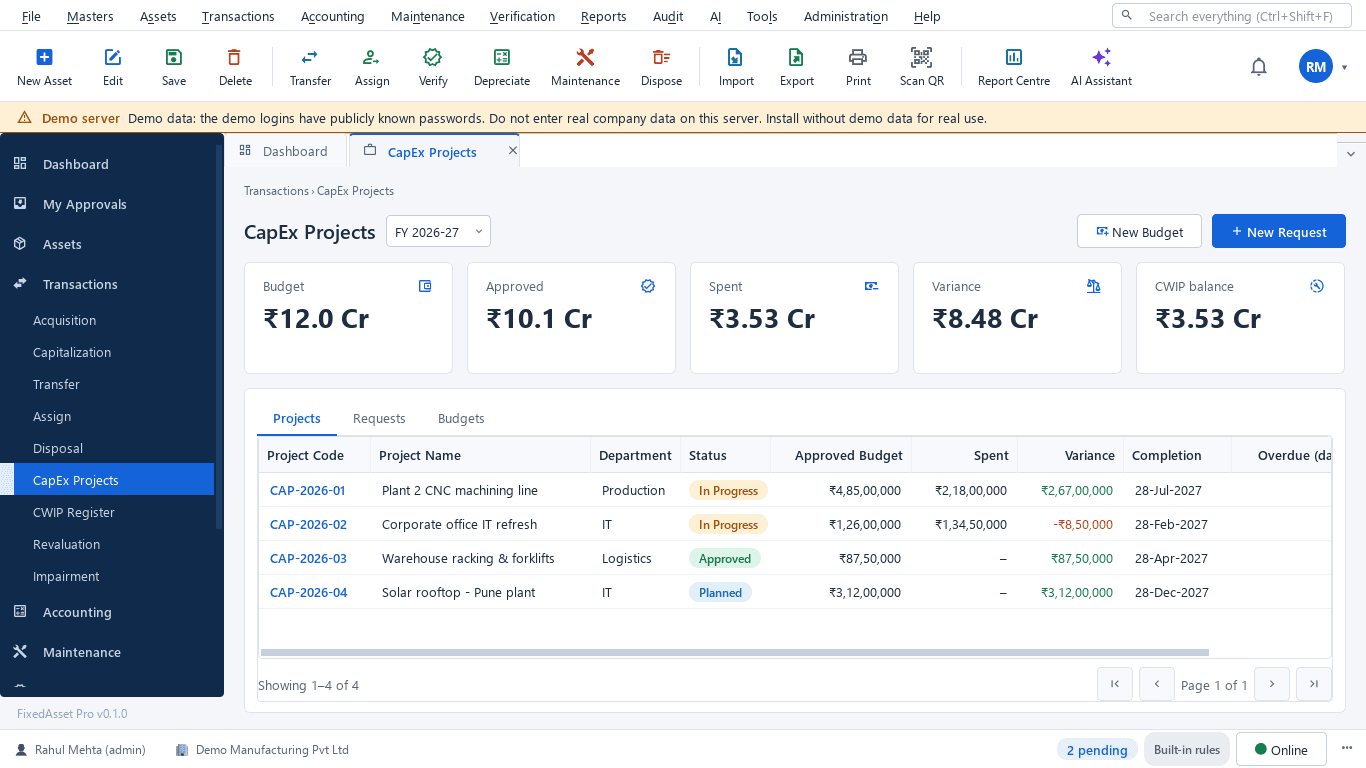
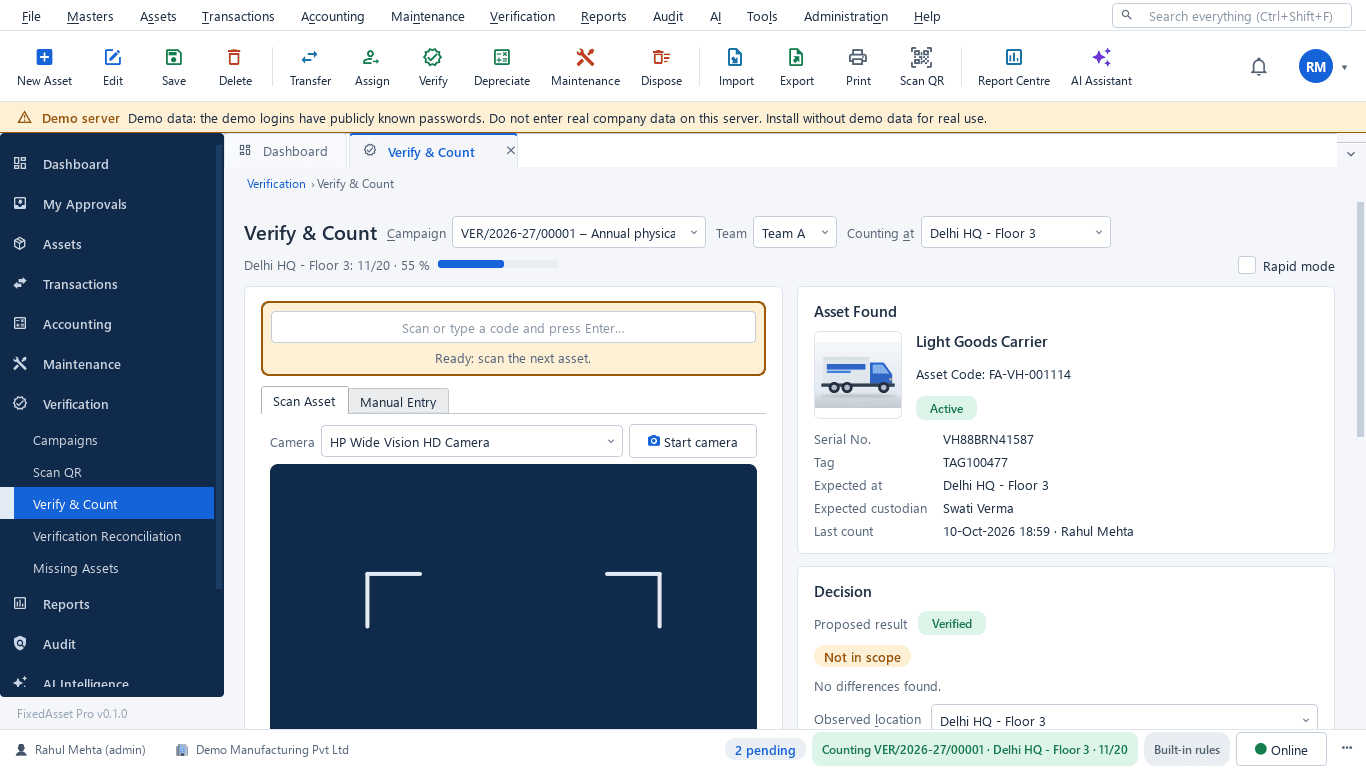
Real screens of the desktop edition, captured on a demo server. The web edition runs the same backend rules in the browser.
Web and desktop
Which edition has it today. One backend, the same depreciation engine, approval chains and audit trail on every surface.
Web app
AvailableThe full chain, including employee self-service: confirm my assets, request a transfer, report a loss.
Desktop app
AvailableAcquisition, capitalisation, assignment, transfers and disposal with printable handover forms; self-service is limited to confirming assets.
Mobile app
AvailableApprovals, my assets and transfer requests on the go, for web edition users.
Works with
Where this feature connects to the rest of the platform, and who uses it most.
Frequently asked questions
Can we dispose of part of an asset?
Yes. A partial disposal is recorded by quantity or by value, with its own gain or loss and journal; the remaining part keeps depreciating.
Can a disposal be reversed?
A disposal made in error can be reversed. The reversal is its own transaction, so both the mistake and the correction stay on the timeline.
Which moves need approval?
That is yours to design. The Workflow Designer sets steps by role or user with conditions by transaction type, amount and branch, and lets you test a chain before it goes live.
Can employees see their own assets?
In the web edition, employees confirm the assets assigned to them, request transfers and report losses; department heads see their department's assets. The desktop edition offers the confirmation step.
More about Asset Lifecycle
Moving assets between locations, branches and companies without losing the trail
A transfer looks like a change of location in the register. Depending on where the asset goes, it can also be a GST supply, a disposal by one company and an acquisition by another, and a gap in your verification. A practical guide.
See it on your own register
Start a free trial of the web edition, or book a demo and we will walk through it with your data. No card is needed to begin.