
Desktop Application
A native Windows application, not a web page in a box. Data and AI stay on your server.
Available now · Windows 10 / 11, 64-bit
Built for high-frequency work
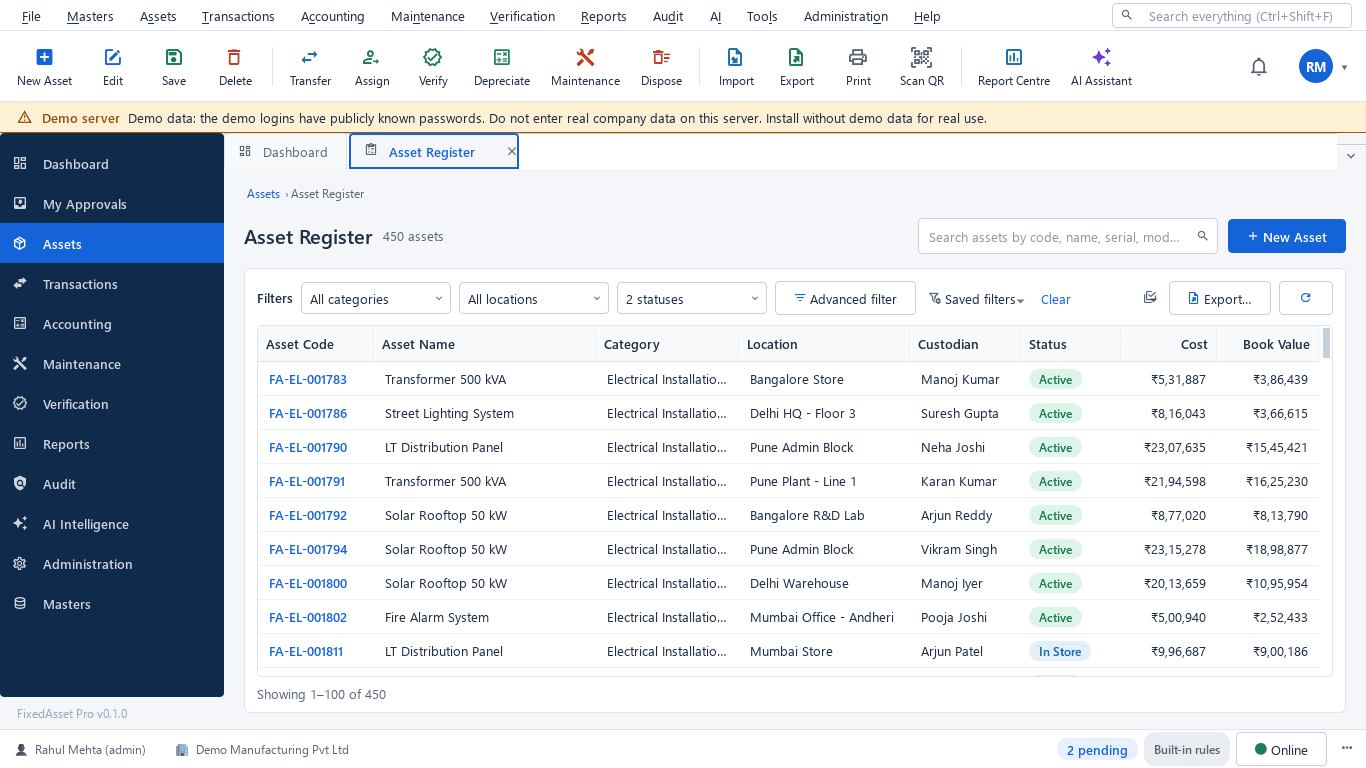
- Top menu and toolbar: File, Masters, Assets, Transactions, Accounting, Maintenance, Verification, Reports, Audit, AI, Tools, Administration
- Dense, sortable data grids with multi-select filters, saved filters and bulk edit
- Keyboard first: Ctrl+K command palette, Ctrl+N new asset, Ctrl+Shift+F global search, F9 scan QR, F7 reports, F8 AI Assistant
- Tabs for open records, a detail panel per asset and a global search across assets, serials, tags and documents
Printing and scanning
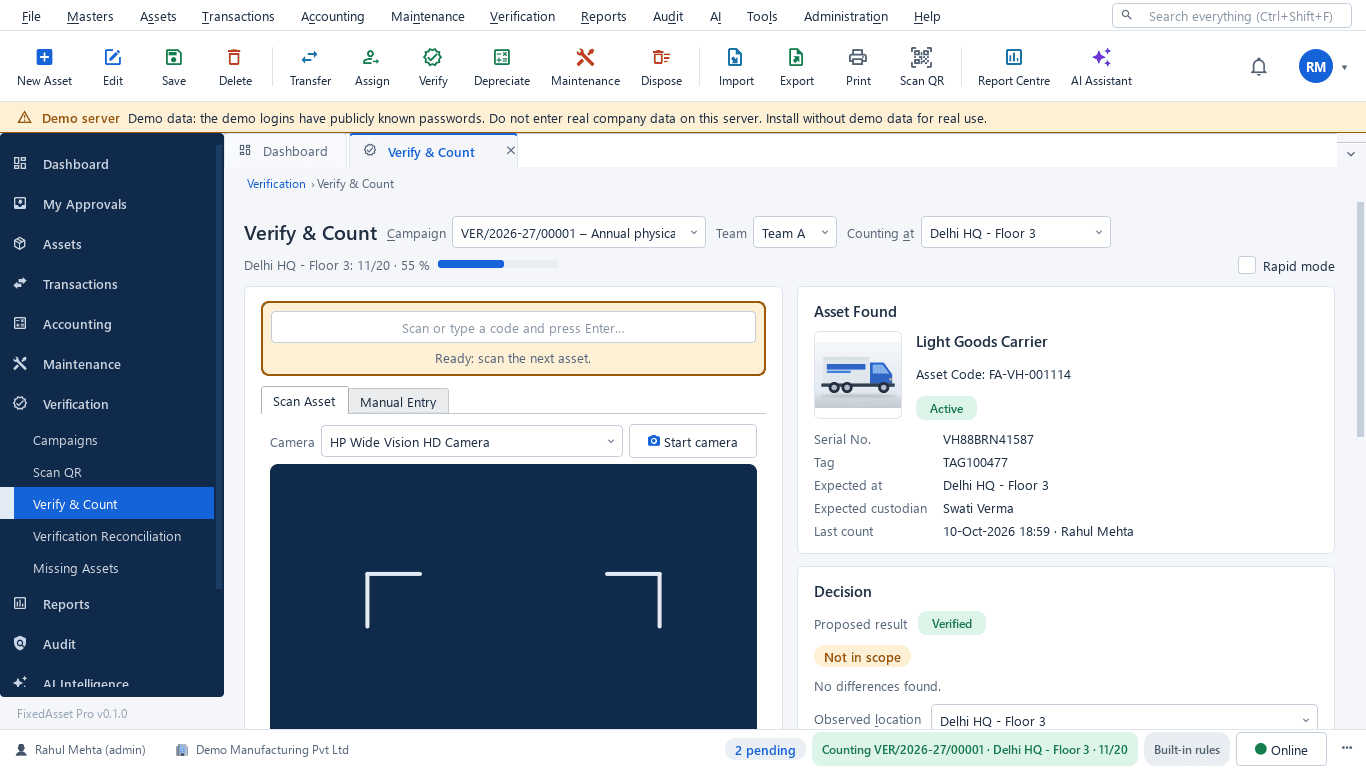
- QR, barcode, Data Matrix and EAN-13 labels on your label sheets; print, reprint and replace with full tag history
- RFID EPC codes with export for your printer-encoder
- Scan with a USB scanner, a webcam or a handheld reader file
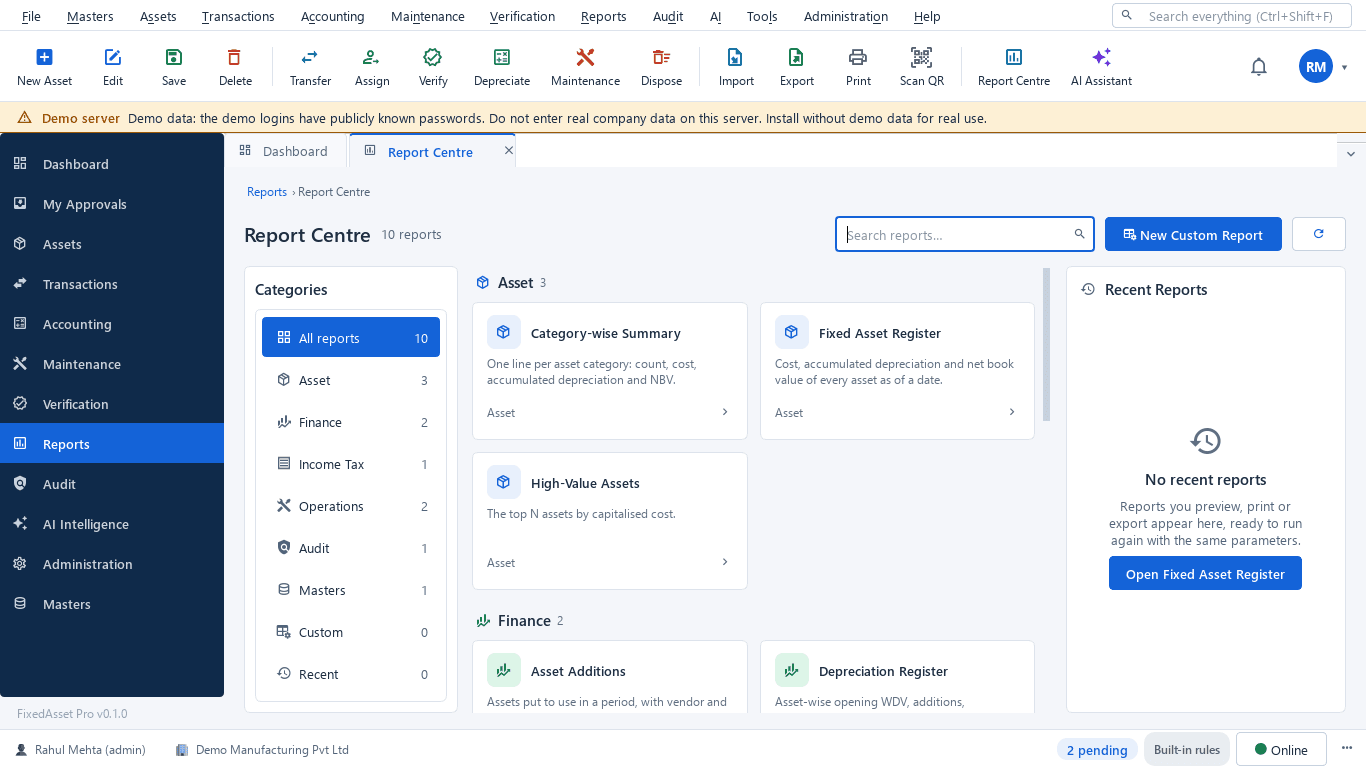
- Printable handover acknowledgements, count sheets, disposal certificates and every report
Deployment modes
Single Computer
Program and database on one PC, with an optional background service. For a small office or a single accountant.
LAN Server
The database, local AI, OCR and backups live on one server PC that runs the Windows service "FixedAsset Pro Server" with a TLS certificate.
LAN Client
Program only; connects to the server over the office network with the server's certificate fingerprint pinned. No internet needed for daily work.
System requirements
| Server or single computer | Windows 10 or 11, 64-bit · 4 CPU cores · 8 GB RAM · SSD · 20 GB free disk · administrator rights to install |
|---|---|
| Client PC | Windows 10 or 11, 64-bit · administrator rights to install · network access to the server PC on TCP port 8765 |
| Local AI (optional) | A CPU with AVX2, 8 GB RAM or more, 3 GB extra free disk; no graphics card needed. Without it, the assistant uses built-in rules. |
| Database | Included and installed by setup; no separate database installation and no database password on client PCs. |
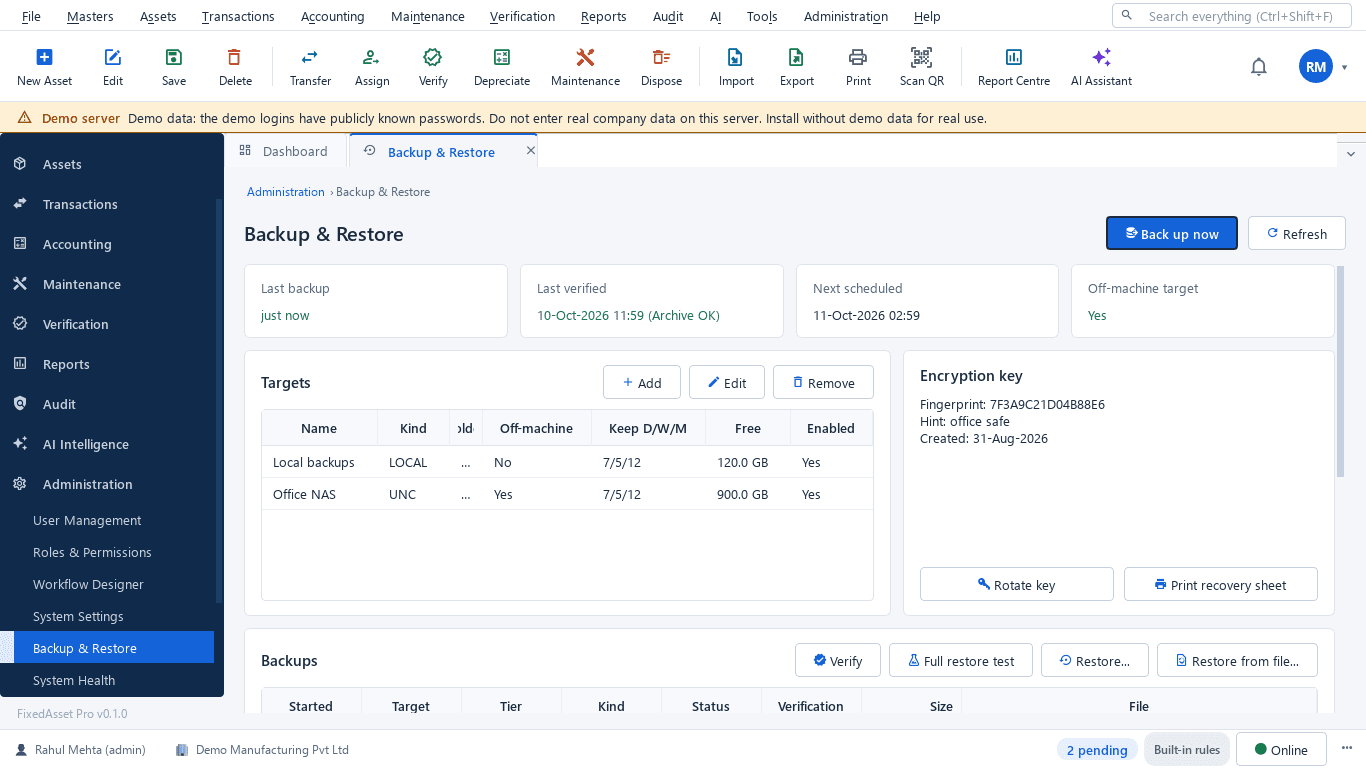
| Backup location | A folder on another PC or a NAS, with a backup passphrase of at least 12 characters; never keep the only backup on the server PC. |
Installation in short
- Run the Server setup as administrator; choose Single Computer or LAN Server, the program folder and the data locations.
- Enter the off-machine backup folder and passphrase; setup prepares the database and the server's security certificate.
- Open Server Manager, check the service is running, run Back up now and a Restore test before entering real data.
- On each client PC run the Client setup with the server address and certificate fingerprint; a connection test is mandatory.
- Sign in as the first administrator and create your real company: no demo data.
Local AI and privacy
The desktop edition runs a local AI model on your server PC, with built-in rules when it is off. Cloud AI is off by default and needs two confirmations; database rows are never sent. AI activity is logged in a hash-chained log.
The installer and the application are signed with the vendor's own certificate; until that certificate is trusted on a PC, Windows SmartScreen may ask you to confirm the publisher. Every published file shows its SHA-256 checksum on the download page.